


A report from the Irish Council for Civil Liberties, shared with Bloomberg Opinion, reveals that ad platforms share Americans’ and Europeans’ location data and browsing habits around 178 trillion times a year. The report also highlights that Google alone transmits this kind of data over 70 billion times daily across both regions.
It’s no wonder many feel that Google knows too much about us. From your favorite places to the music you love, every search you make is saved in your Google account, creating a detailed profile of your preferences and habits.
According to Skill-lync, Google processes more than 40,000 petabytes of data daily. However, the company hasn’t provided updated figures since 2020, leaving us to imagine just how much data is being handled today.
While this data helps Google deliver better search results and personalized content, it can sometimes feel overwhelming—especially when your YouTube feed becomes cluttered with distractions or you just want your search history to stay private.
The good news? It’s not too late to take control of your data.
In this guide, we’ll show you how to easily manage and delete your Google Search activity. Whether you’re using a computer or a phone, we’ve got simple steps to help you protect your privacy and stay organized.
What Does Google Collect and Why?
Google gathers information from almost everything you do online, and this helps it offer you better results, ads, and services. Here’s a quick look at the types of data Google collects and why:
- Search history: It remembers every time you search for something on Google. For example, if you search for “best pizza near me,” Google saves it to suggest pizza places faster next time.
- Location data: Google tracks where you go using GPS, Wi-Fi, and cell towers. This is helpful when you need directions or live traffic updates. For instance, if you visit a park, Google might recommend nearby coffee shops.
- Browsing activity: If you use Chrome while logged in, Google saves details about the websites you visit. This helps it suggest pages you might like or improve your browsing experience.
- App usage: Google tracks how you use apps on your phone, especially if they’re Google apps like Gmail or YouTube. For example, it might note how often you watch videos or check your email.
- Voice and audio: When you say, “Hey Google,” your voice is recorded to help Google Assistant understand you better. This way, it can answer your questions faster in the future.
- Interactions with Google products: Whether it’s watching a video on YouTube, navigating with Google Maps, or using Google Photos, your activity is saved to improve these services for you.
Google collects this data to make your online experience easier and more personalized. It learns what you like, where you go, and how you use its services to predict what you might need next.
Tools to Delete Your Data
Here are some simple tools you can use to manage and delete your Google activity:
- My Activity or My Activity Google Delete: This tool lets you view and delete data that Google has tracked from your account.
- Google Dashboard: It shows all your account settings and recent activity for each Google service, like Gmail or YouTube.
- Google Account Settings: You can manually delete your search history, location history, and other data or set it to delete automatically.
Before accessing these platforms or our guide, look at what Google’s Privacy Policy says about the collected data.
Check Google’s Privacy Policy
Google’s privacy policy explains how it collects, uses, and stores your data. Some information can be deleted by you anytime, while other data is erased automatically after a set time. For example, location data in web & app activity is deleted after 30 days.
However, some data may be kept longer if needed for business or legal reasons. You can read Google’s Privacy Policy to learn more about how your data is handled.
Steps to Delete your Google Search History on Your PC or Mac
Whether you’re using Chrome or want to delete activity from your Google account, follow these easy steps:
Delete Search History on Google Chrome
Step 1: Start by opening the Chrome browser on your PC or Mac.
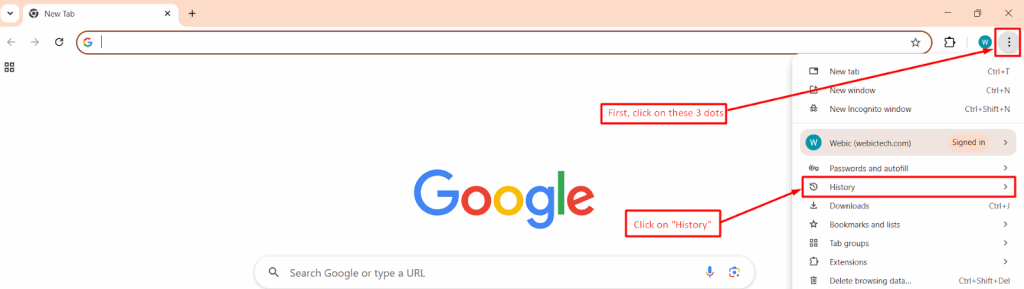
Step 2: Click on the three dots in the top-right corner of the browser. A menu will appear, click on the “History” option. You can also use shortcuts: press `Ctrl + H` on Windows or `Cmd + Y` on Mac to open the History directly.
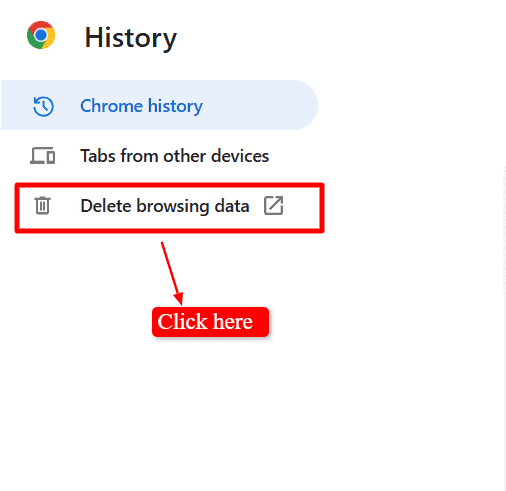
Step 3: On the left side, you’ll see “Delete Browsing Data.” Click on this option.
Step 4: A new panel will appear. Make sure the “Browsing history” box is checked. You can choose a time range, like the last hour, or last day, or select “All time” to delete everything.
Step 5: In the Same Panel, you will get a few more options:
- Cookies: These are small files that remember your login and website settings. Deleting them will log you out of websites.
- Cached images and files: These are stored copies of websites to make them load faster. Deleting them can free up space but may slow down loading at first.
- Advanced options: This includes history, passwords, and other site data. Be careful, as deleting these can remove important saved details.
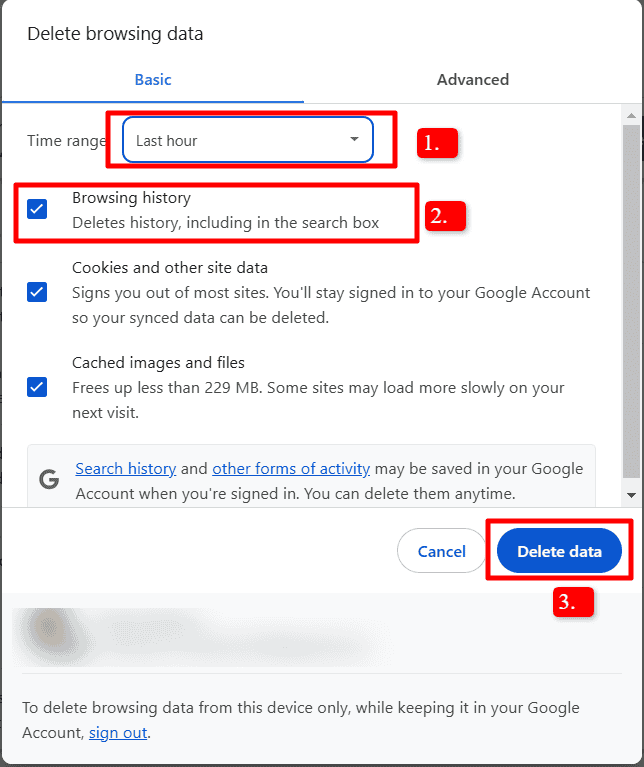
Step 6: Finally, click on “Delete Data” to remove your search history from Chrome.
Delete Search History from Your Google Account
If you want to delete your search history from all devices, you need to do it through your Google account. Here’s how:
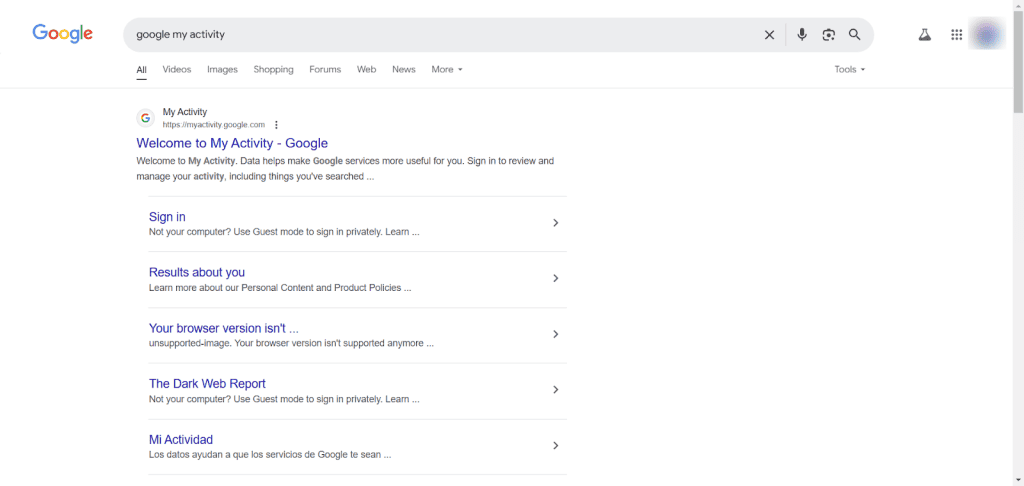
Step 1: Open Chrome and search for “Google My Activity.” Click on the link and log into your Google account.
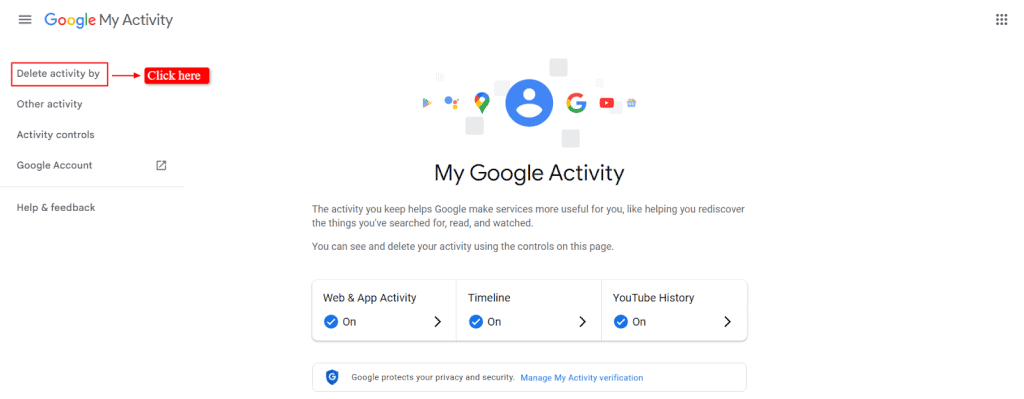
Step 2: Once you’re on the My Activity page, look just under the search bar. You’ll see a “Delete activity by” option, Click on it.
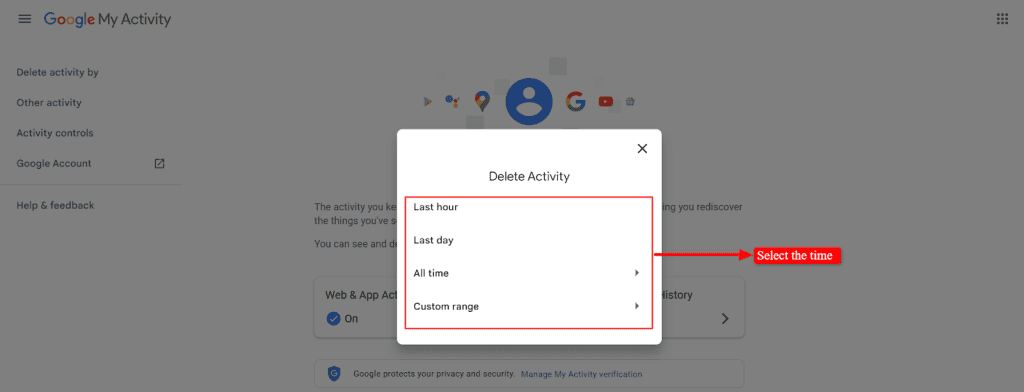
Step 3: A Popup will appear with options like last hour, last day, all time, and custom range.
Step 4: Select the time range you want to delete. If you want to clear everything, choose “All time” or you can also select the custom date range.
Step 5: A popup titled “Choose Activity to Delete” will appear. It will show a list of 21 Google products. You can select one at a time or choose all at once to delete activity from them.
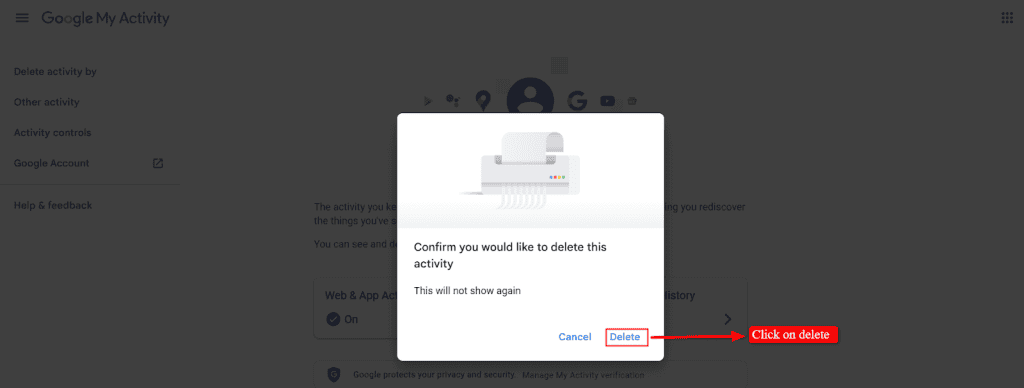
Step 6: A pop-up will appear asking if you’re sure. Click “Delete” to confirm.
How to Delete Your Google Search History on Android
Deleting your Google search history on your Android phone is simple and can be done in two ways: using the Google Search app or the Google Chrome browser.
Here’s how you can manage and delete your search data easily:
Delete Search History on Google Search App
Step 1: Open the Google app on your Android phone.
Step 2: Tap on your profile picture at the top right corner.
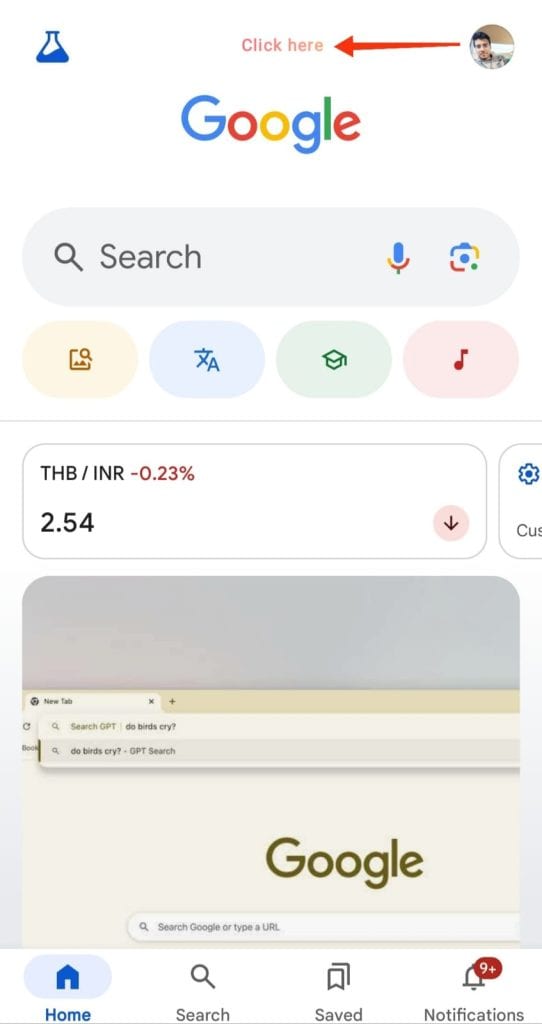
Step 3: From the menu, select “Search History.”
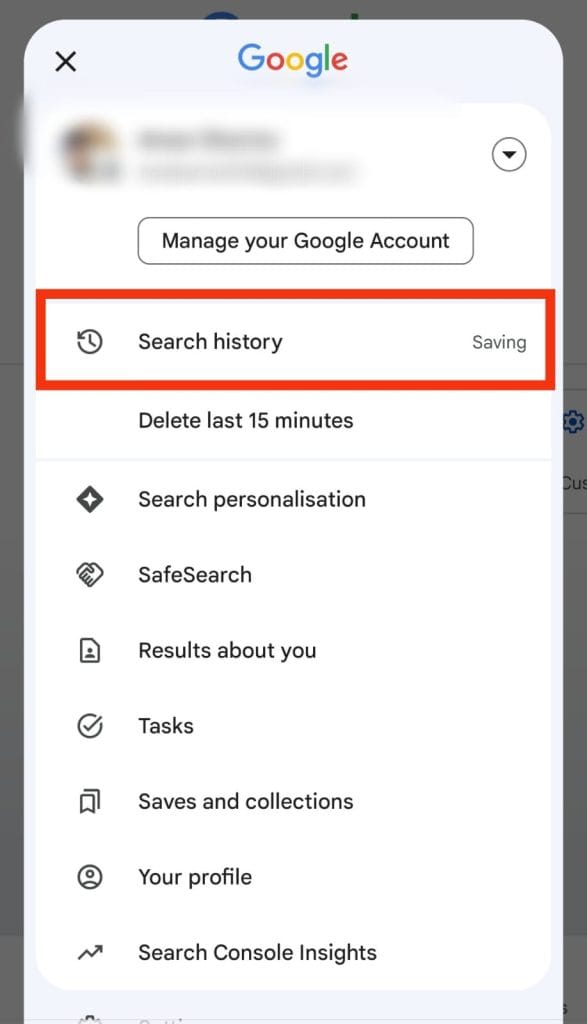
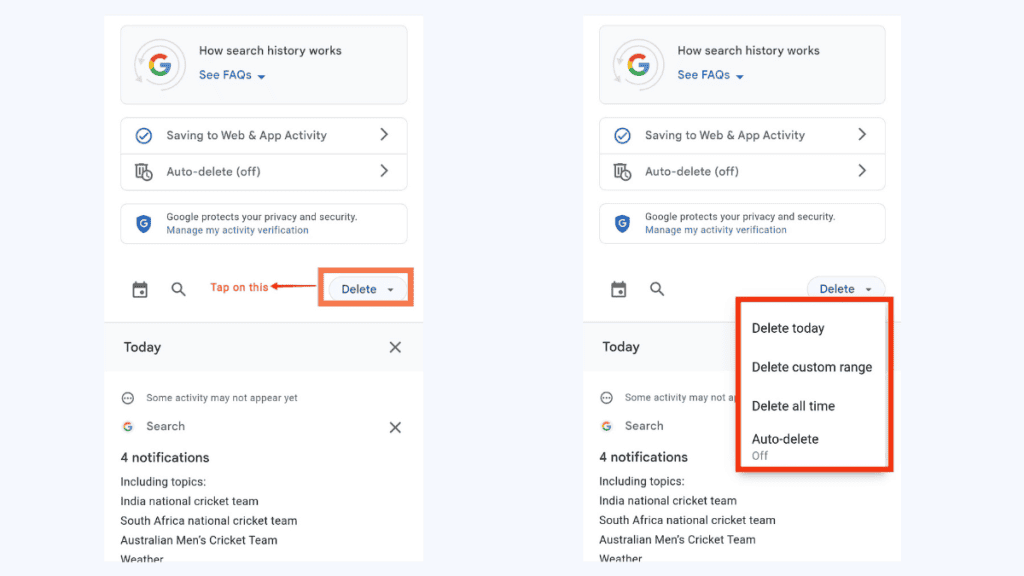
Step 4: Tap on the “Delete” option and from the drop-down menu choose a date range that suits you—such as Today, Custom Range, or All Time.
Step 5: A popup titled “Choose Activity to Delete” will appear. It will show a list of 21 Google products. You can select one at a time or choose all at once to delete activity from them.
Step 6: Once you’ve made your selection, tap “Delete” and your search history will be cleared.
Delete Search History On Google Chrome:
Step 1: Open the Google Chrome browser on your Android phone.
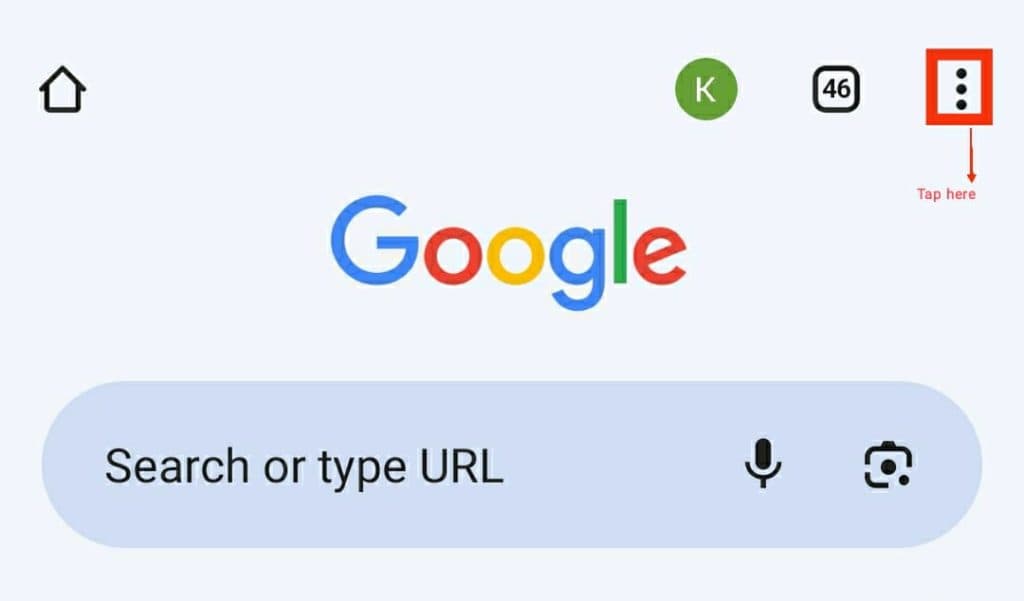
Step 2: Tap the three dots in the top-right corner to open the menu.
Step 3: Select “History” and then tap “delete browsing data.”
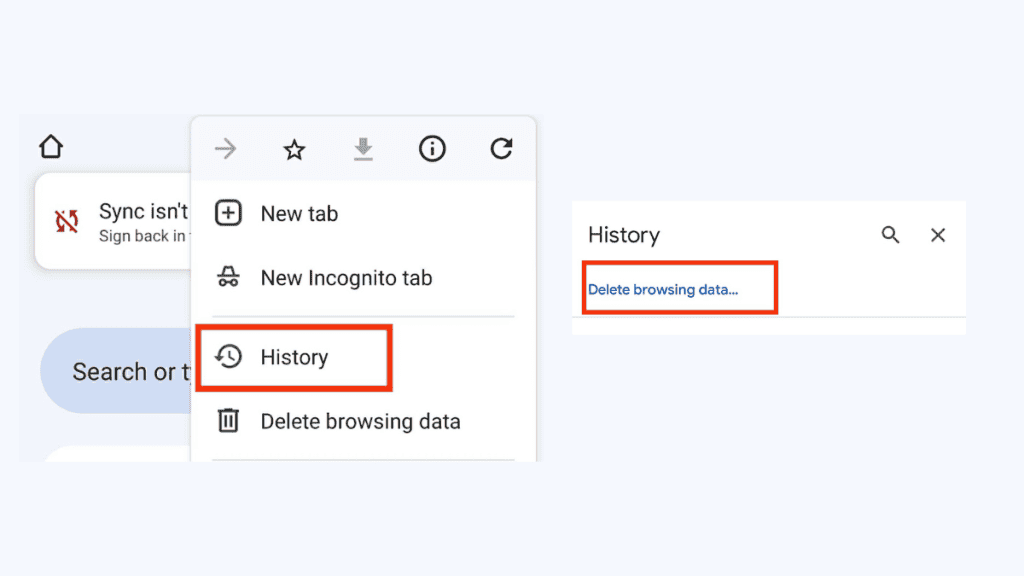
Step 4: Make sure “Browsing history” is checked, then select a time range.

Step 5: Finally, tap “Delete Data” to delete your history.
Both methods are straightforward and give you control over your search history.
How to Delete Your Google Search History on iOS
If you’re using an iPhone or iPad, deleting your Google search history is easy. You can do this through the Google app or the Google Chrome browser. Follow these steps to clear your search data on your iOS device:
Delete Search History Using the Google App:
Step 1: Open the Google app on your iPhone or iPad.
Step 2: Tap your profile picture or initials in the top-right corner.
Step 3: Select “Search History” from the menu.
Step 4: Tap “Delete” and choose the Search history you want to delete. You can choose: Delete all time, Delete custom range, a specific day, and a specific activity: Next to the activity, tap Delete activity
Step 5: Confirm by tapping “Delete” again; your search history will be cleared.
Delete Search History Using Google Chrome:
Step 1: Open the Google Chrome app on your iOS device.
Step 2: Tap the three horizontal dots in the bottom-right corner.
Step 3: Tap “History” from the menu.
Step 4: Scroll down and tap “Clear Browsing Data.”
Step 5: Choose “Browsing History” and select a time range.
Step 6: Tap “Clear Browsing Data” and confirm to delete your history.
How to set the Auto-Delete for Google My Activity History
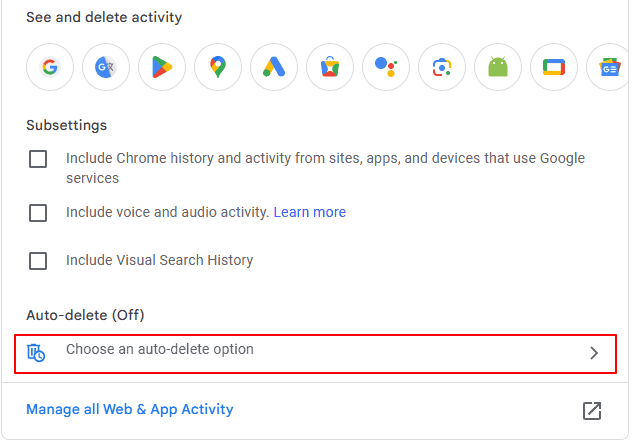
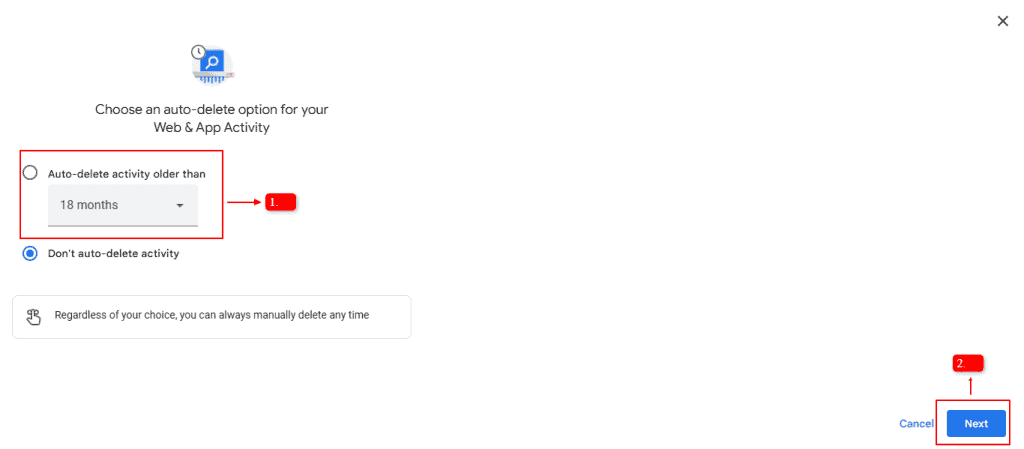
Google makes it easy to manage your search history by allowing you to set up auto-delete. This means Google will automatically delete your search, web, and activity history after a certain time. You can choose to delete your history every 3, 18, or 36 months. Here’s how you can set this up:
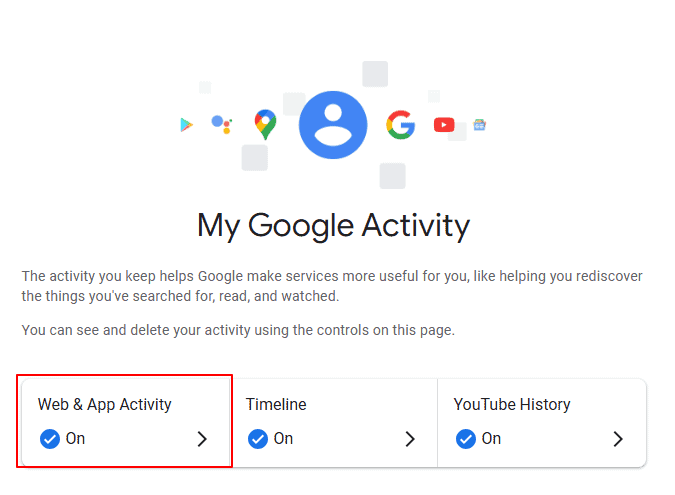
Step 1: Go to the https://myactivity.google.com/ page on your browser. You can use Chrome or any other browser you prefer.
Step 2: Once you’re on the My Activity page, find the “Web & App Activity” section and click on it. Scroll down until you see the “Auto-delete”.
Step 3: Click on “Choose an auto-delete option.” You’ll be given the choice to delete your activity every 3, 18, or 36 months Select the time frame that works best for you.
Step 4: After selecting the time frame, click on “Next.” You’ll see a summary of the activity that will be deleted. If everything looks good, click “Got it.”
How to Stop Tracking in Google My Activity
If you don’t want Google to track your browsing and search history, you can easily turn off activity tracking. Here’s a simple guide on how to stop Google from logging your online activities:
Step 1: Open Google My Activity: Go to the Google My Activity at https://myactivity.google.com/ page using your desktop or mobile browser.
Step 2: Access web & app activity: On the My Activity page, find the “Web & App Activity” section. Click on it to view more details.
Step 3: Turn off tracking: You’ll see a dropdown switch for Web & App Activity. If it’s on, click to turn it off. A message will appear explaining how this might affect your personalized Google experience. If you’re okay with that, click “Turn off” and then “Got it.”
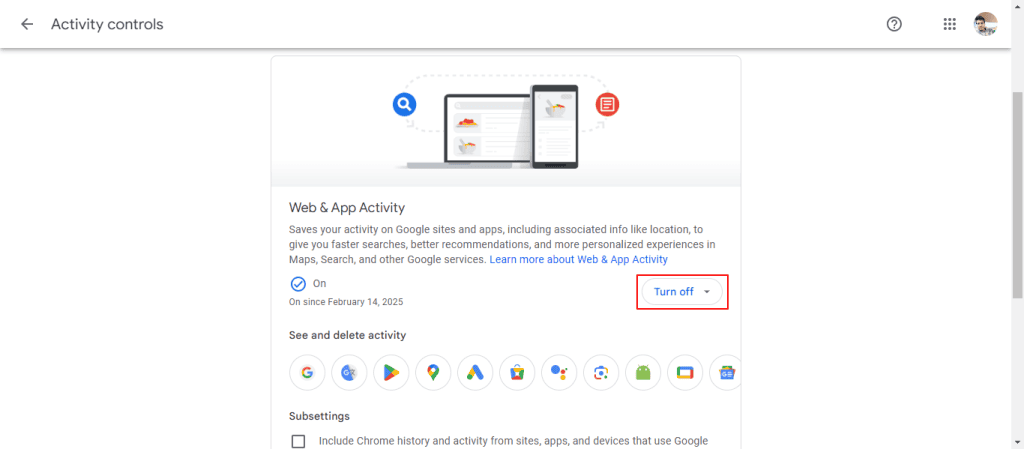
After completing this process Google will stop tracking your searches and online activity. You can also turn off other tracking options, like Location History and YouTube History, by following similar steps on the My Activity Google Delete page. This way, you can take control of your online privacy.
6 Tips to Protect Your Online Privacy
Here are simple ways to protect your digital privacy:
Use privacy-focused alternatives
Consider using alternate search engines, browsers, and apps that prioritize your privacy. For example, DuckDuckGo doesn’t track your searches, and Signal offers secure messaging. These alternatives help keep your data safe.
Use private browsing modes
Think of incognito mode as a pair of sunglasses for your online activity. It doesn’t save your browsing history, cookies, or site data. It’s a handy option when using a shared computer or making quick searches.
Clear your browsing history regularly
Don’t leave a digital trail behind. Make it a habit to clear your browsing history, cookies, and cache. This reduces the chances of websites tracking your activity.
Adjust privacy settings
Check the privacy settings on your devices and accounts. Turn off data-sharing options and limit tracking. It’s your information—take control of who sees it.
Use a VPN
A VPN works like a secure tunnel for your internet connection, encrypting your data. This makes it harder for anyone to track your online activities and keeps your browsing private.
Review app permissions
Go through the permissions for apps on your devices. If an app doesn’t need access to your location, contacts, or camera, revoke those permissions.
Conclusion
Managing your Google My Activity history helps protect your privacy. By deleting your search data regularly, you can keep your personal information and browsing habits private. The Google My Activity page makes it easy to clear your history manually or set up auto-delete to remove data automatically.
These simple steps let you control what to keep and what to delete, reducing your digital footprint. While deleting your history improves privacy, it won’t stop all online tracking, like browser fingerprinting, so staying informed is key.
Make it a habit to review and delete your activity regularly to safeguard your personal information and maintain better control over your online privacy.
FAQ
How Do I See My Full History on Google?
- Go to Google My Activity: Open your browser and visit https://myactivity.google.com/.
- Navigate to My Activity: Once on the My Activity page, you’ll see all your activities organized by day and time.
By following these steps, you can easily view your full history on Google. This allows you to keep track of your online activities and manage your data more effectively.
How do I turn off my Google search activity?
- Visit Google Account.
- Click on “Data & Privacy” in the menu.
- Under “History settings,” click “Web & App Activity” and toggle it off.
- Confirm your choice, and you’re done
Why can’t I clear my search history?
If you can’t clear your search history, it might be because of a slow internet connection, Google server issues, or an outdated browser. Sometimes, your antivirus might also block the process. Browser settings, syncing problems across devices, or a small glitch might also be the cause.